
This guide provides step-by-step instructions for how to properly install the Describe It audio player on your Shopify theme.
Manual installation for Online Store 2.0 themes
- From the Shopify admin, navigate to Sales channels > Online Store > Themes.
- Click Customize next to the theme you want to install Describe It on.
- Click the Sections icon in the left sidebar.
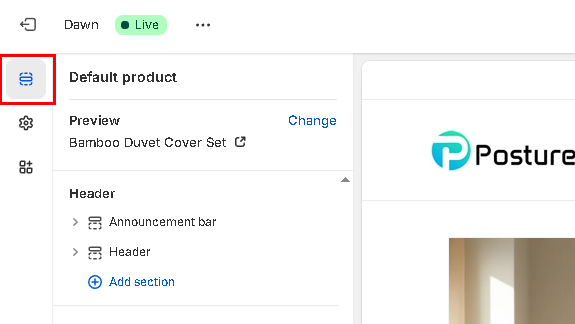
- In the template menu at the top of the page, select Products, then select the product template on where you want to add Describe It.
- In the left menu under the Template section, hover your cursor between menu items until the Add block pop-up appears.
- Click on the blue plus-sign, then click on Apps.
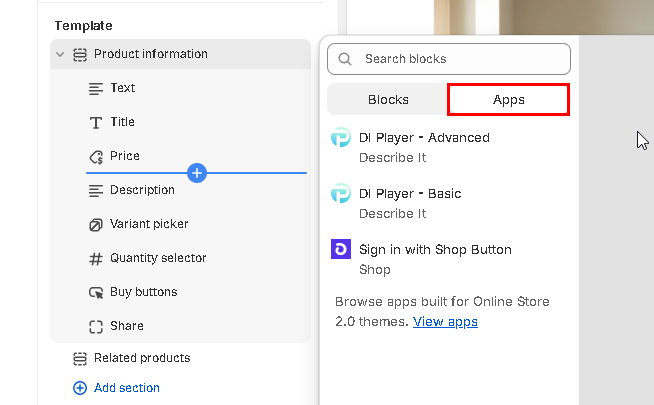
- Click on the widget for the Describe It audio player you want to add:
- DI Player – Basic: Includes a play button and title.
- DI Player – Advanced: Includes a play button, title, volume controls, and progress bar.
- Optional: Change where the audio player appears on the page by dragging and dropping the widget to an alternate place in the menu.
- Optional: Customize the audio player’s appearance by clicking on the DI player widget to open the style settings menu. For more information, please visit Customize the Audio Player Style.
- Click Save.


